In a world where computer science (CS) is everywhere, CS is for everyone. CS crosses every discipline and industry.
Khoury College of Computer Sciences is committed to building and fostering a diverse, inclusive environment.
The nation’s first computer science college, established in 1982, Khoury College has grown in size, diversity, degree programs, and research excellence.
At our regional campuses, located in industry and tech hubs, Khoury College offers strong academic programs in vibrant cities to live, work, and study.
Khoury College is a community of people devoted to teaching, mentoring, advising, and supporting students across every program.
The college and university award programs shine a light on exceptional faculty, students, alumni, and industry partners.
Our real-world research, outstanding faculty, distinguished speakers, dynamic alumni, and diverse students tell their stories—and make the news.
At Khoury College, learning happens in and beyond the classroom. Events across our network of campuses enrich the educational experience.
Computer science is everywhere. Khoury College undergrads pursue relevant work, research, global study, and service experiences that help them grow.
Master's students deepen their expertise through project work, professional work experiences and research assistantships.
Work on research with faculty is central to the PhD experience. Khoury College doctoral students can also pursue research opportunities with industry partners.
Khoury College faculty and students are doing impactful work across disciplines. With a breadth of research areas, we tackle new problems in tech every day.
Our institutes and research centers bring together leading academic, industry, and government partners, to harness the power of computing.
Research projects, designed and led by Khoury College’s world-class faculty, engage students and other researchers in producing new knowledge.
Research labs and groups focus on a set of problems in a specific context, inviting inquiry and collaboration.
Khoury College faculty are leaders in their fields and are regularly published, recognized, and awarded for their research and work in their fields.
This new initiative aims to solve risks to privacy and personal data with a collective, grassroots effort, emphasizing transparency and accountability.
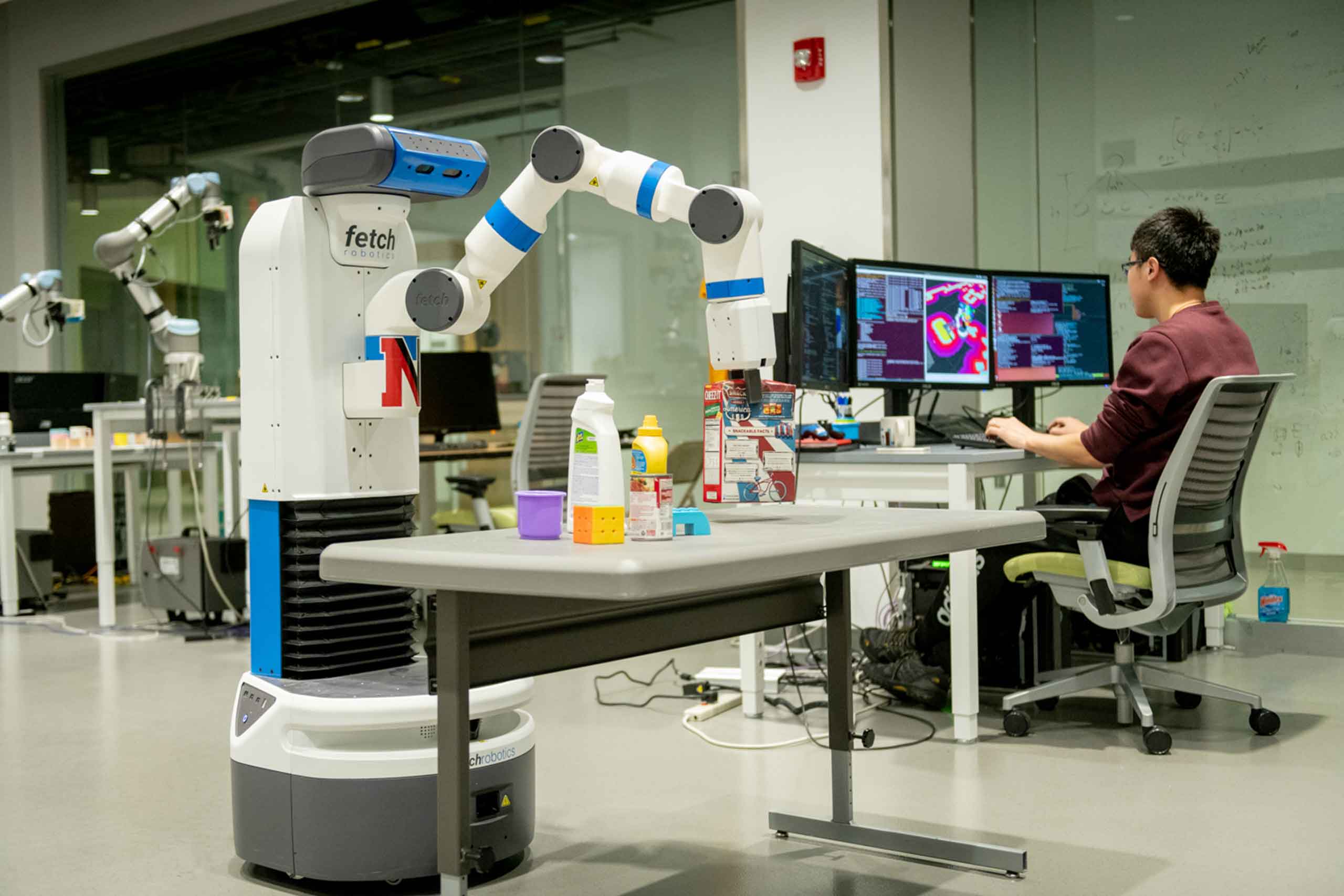
Modern facilities, seamless systems, and innovative labs and spaces empower our faculty and students to conduct cutting-edge research.
Khoury College is proud of our collaborative, inclusive community. Every day we strive to create programs that welcome diverse students into CS.
More than 20 computing-related clubs at Khoury College and Northeastern offer something for every student. New members at every level are always welcome.
Students learn in modern classrooms, collaborative meeting rooms, and cutting-edge labs and research spaces.
Networks ensure code runs securely and seamlessly, equipment is modern and robust, and our skilled systems team manages support and upgrades.
Intrigued by a Khoury College and Northeastern undergraduate education? Start here for the big picture—academics, experiential learning, student life, and more.
Ready to take the next step in a tech career? Our master’s programs combine academic rigor, research excellence, and meaningful experiential opportunities.
Welcome to the Align Master’s Program, designed for people ready to add computer science (CS) to their skill set—or switch to a brand new career in tech.
As a Khoury PhD student, you’ll immerse yourself in a rigorous curriculum, collaborate with renowned faculty, and make an impact in your chosen research area.
Wherever you are on the Khoury undergraduate path, we have advisors, resources, and opportunities to fuel your success and make computer science for everyone.
Wherever you are on the Khoury graduate school journey, our advisors, information resources, and opportunities will help you forge an individualized path.
At any point in the Align journey—and at any of our network of campuses—Khoury advisors, resources, and opportunities support your path to a career in tech.
Advisors and faculty will help you navigate the PhD path at Khoury College—from research spaces and interdisciplinary projects to student life and resources.
Faculty and staff make exceptional contributions to Khoury College—and the future of computer science. We are here to support you at every turn.